
Updated 2026-10-13 · 8 min read
How to set up your TikTok streamer profile: a step-by-step guide with screenshots
Viewers open a streamer's profile a few seconds after landing on their LIVE, and in those seconds they decide whether to follow or scroll on. A well-built profile turns a random viewer into a follower, and a follower into a regular at your streams. Let's go through every element: username, avatar, bio, links, videos and the settings of the LIVE itself.
Why the profile matters for a streamer
A regular TikTok creator grows through videos in recommendations. A streamer grows through LIVEs, so their profile works differently.
- It explains why to follow: viewers instantly see what happens on your streams and when they take place.
- It brings people back to your LIVE: followers get notified when you go live, so every new follower raises the viewer count of your next stream.
- It builds trust with gifters: people are more willing to support a streamer with a neat, active profile than an empty account with no avatar.
What a good streamer profile looks like
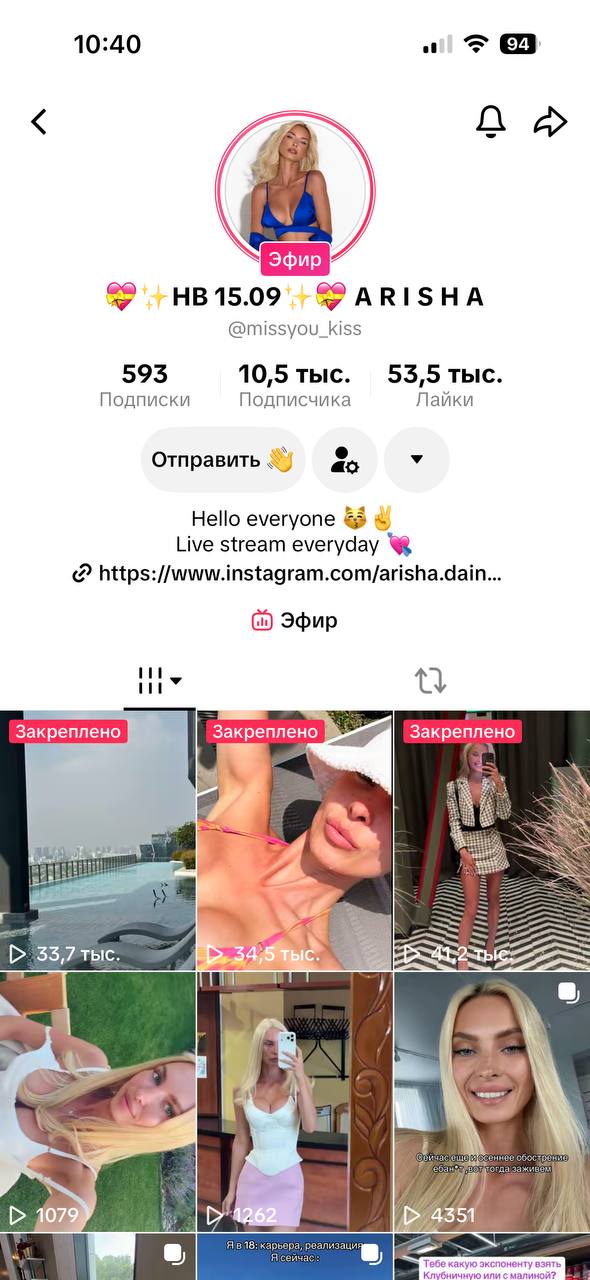
Before we break down each element, let's look at a real example. This is the profile of a StreamHub agency creator who goes LIVE every day.
- The avatar is large and bright, easy to spot in the LIVE feed. During a stream a red ring appears around it, and viewers join straight from the profile.
- A profile name with an emoji stands out in search and gives the chat something to talk about.
- A two-line bio says the main thing: the streamer is LIVE every day.
- An Instagram link takes followers to another social network.
- Three pinned videos with tens of thousands of views greet every new visitor.
Step 1. Username and profile name
TikTok has two fields: the username (what comes after @) and the profile name (the large text above the bio).
- Your username should be short and easy to say out loud: people will mention it in chats and on other streams.
- Avoid extra numbers and runs of dots or underscores: @anna_live is better than @anna__2004.._x.
- Use the same username on every social network so people can easily find you on Instagram and Telegram.
- Don't change your username often: TikTok limits how often you can change it, and old links to your profile stop working.
- Your profile name can use any alphabet and include 1–2 emojis. The "Name + stream topic" format works well: "Anna | evening chats 🌙" or "Max 🎮 games and battles".
- The profile name shows up in search, so a word about your topic helps new viewers find you.
Step 2. Avatar
Viewers see your avatar in the LIVE feed, in chat and in gifter rankings. It's small, so it must be clear even at the size of a fingernail.
- A close-up of your face. For a streamer, your own photo works best, not a logo or a picture from the internet.
- Good lighting and a clean background. A bright, solid background makes your avatar stand out.
- The same look as on your stream. Viewers should recognize you when they open your profile after the LIVE.
- A square image of at least 400×400 pixels with your face in the center: TikTok crops the avatar into a circle.
Step 3. Profile bio
The bio is only about 80 characters long, so every word has to count. A good streamer bio answers three questions: who you are and what your streams are about, when you're LIVE, and what the viewer should do right now.
The most useful line here is your schedule: "LIVE every day from 8 PM" teaches viewers to come at the same time.
Example: "🎤 Singing and chatting LIVE · ⏰ Every evening at 9 PM · 🔔 Follow so you don't miss it". Another option: "🎮 Battles and games with chat · 📅 Mon–Fri 7 PM (Almaty) · 💬 Write in chat, I reply to everyone".
What to avoid: asking for gifts (it puts off new viewers and may break the Community Guidelines), phone numbers and links written as text, and long paragraphs with no structure.
Step 4. Profile links
TikTok lets you link Instagram and YouTube right to your profile. A clickable website link is available to accounts that meet the platform's requirements.
- Link Instagram or YouTube if you're active there: followers will find you even if a stream falls through.
- Mention your Telegram channel in the bio if you post your stream schedule there.
- Don't post links to shady websites or fake engagement services: that's a direct path to account restrictions.
Step 5. Videos and pinned posts
Many streamers don't post videos at all, and that's a mistake. Videos bring new people from recommendations, and they come to your LIVE. You can pin up to three videos at the top of your profile.
- An intro video of 15–30 seconds: who you are, what your streams are about and when you're LIVE.
- The best moment from a stream: a funny reaction, a battle win, a warm moment with chat.
- An announcement or schedule: a video that invites people to your next streams.
- Cut clips from your streams: one LIVE gives you 3–5 short videos, the easiest way to post every day.
- Sort your videos into playlists ("Best of LIVE", "Battles", "Q&A") and make covers in one consistent style.
Step 6. Set up the LIVE itself
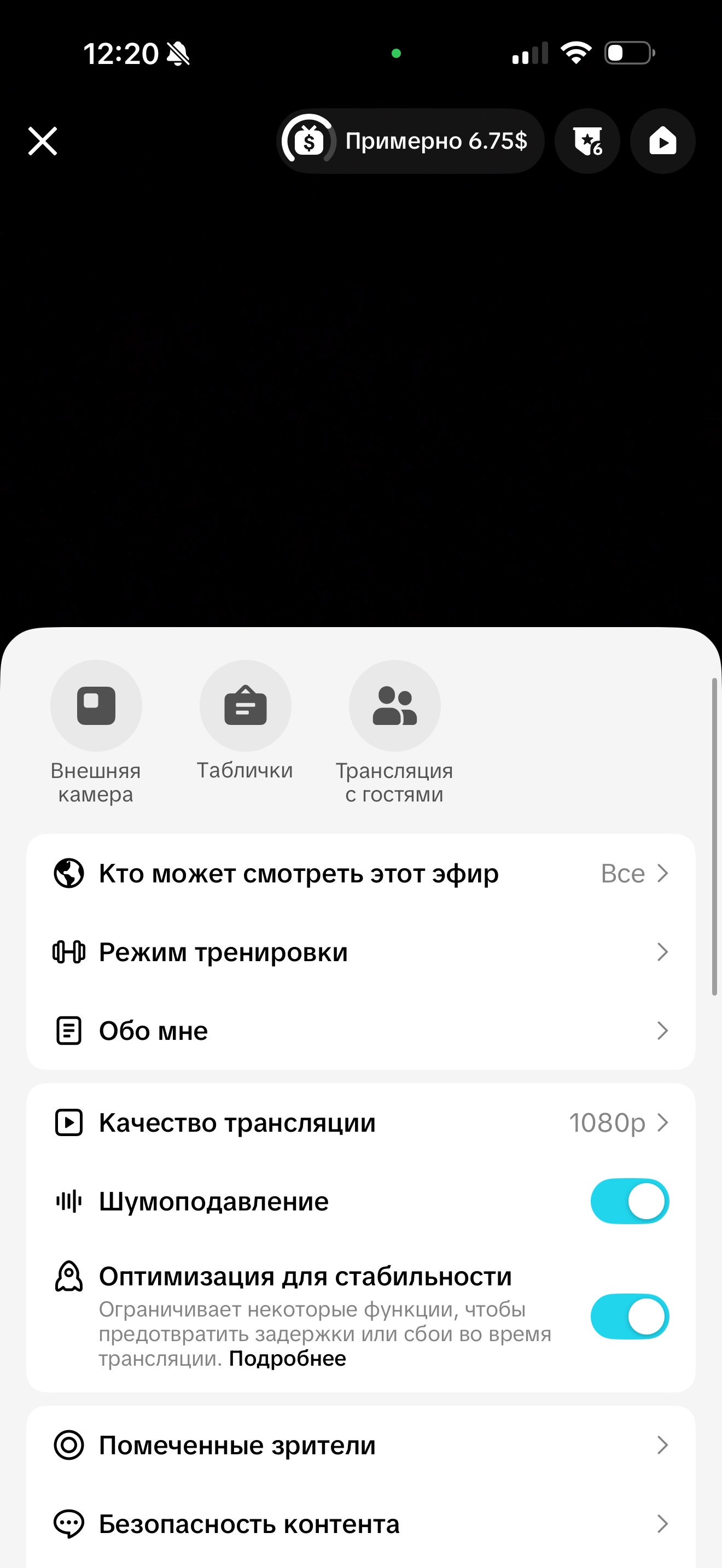
Your profile and your stream work together: a viewer from the LIVE feed sees the stream first and only then opens your profile. Before you start, open the LIVE screen and set up three things.
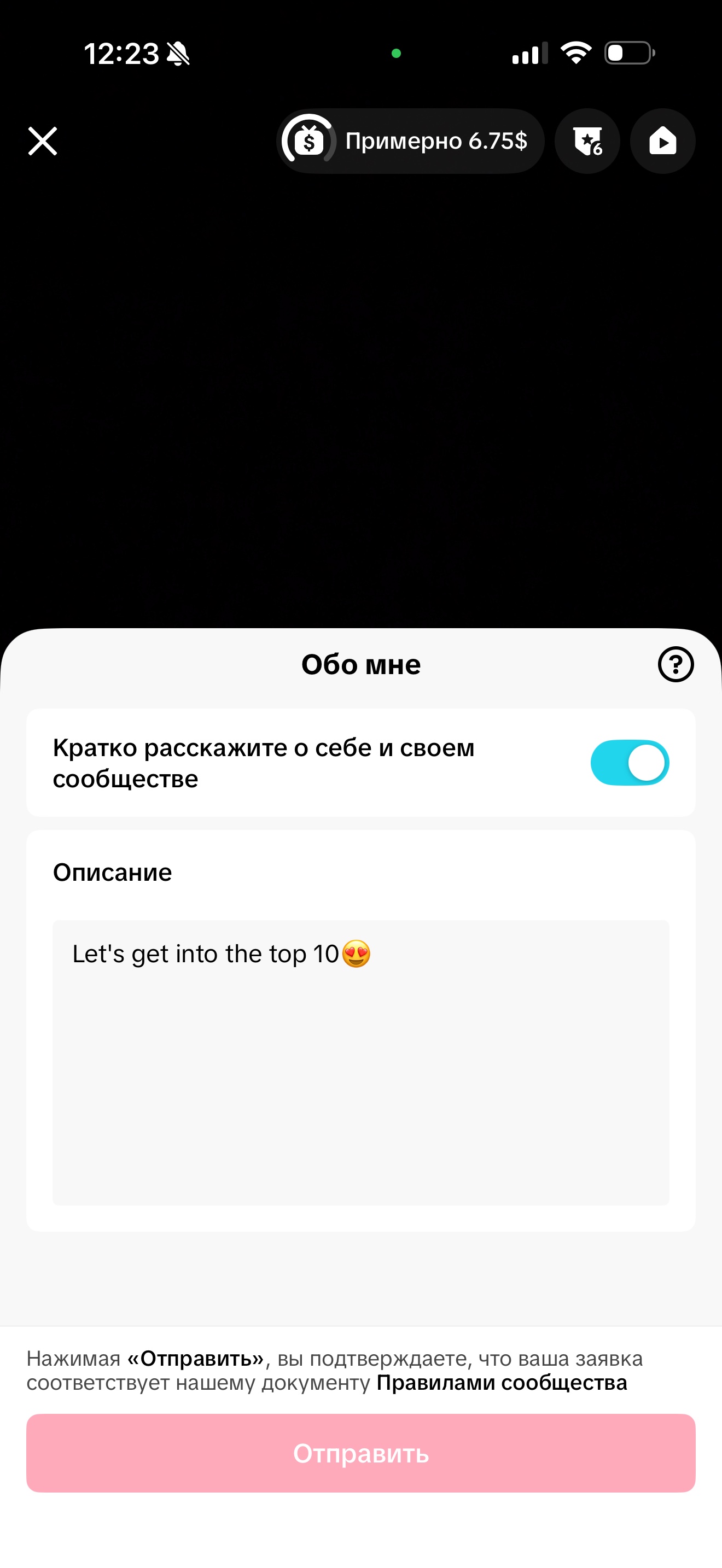
- "About me" inside the LIVE. On the start screen, tap Settings → About me and write the same thing as in your profile: what the stream is about and when you're usually LIVE. Viewers see this description right during the stream.
- Picture quality. In the stream quality settings, choose the highest quality your internet can handle (for example, 1080p) and turn on noise reduction. A sharp picture and clean sound keep viewers longer.
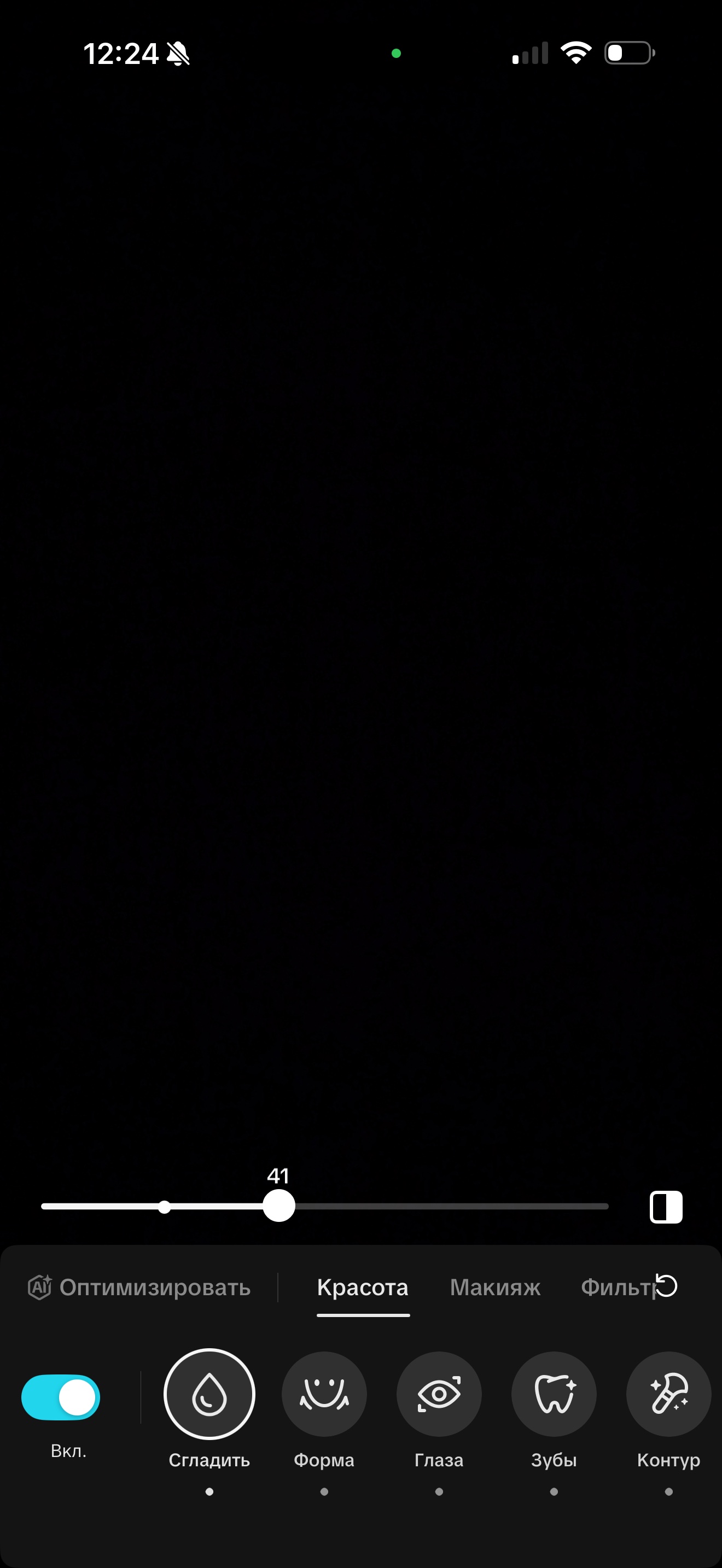
- Your look on camera. The Enhance button turns on a soft beauty filter. Don't overdo it: viewers should recognize you from your avatar.
Step 7. Protect your chat with a keyword filter
Spam and insults in chat scare off new viewers as much as an empty profile does. You set up the filter once, and it works on every stream.
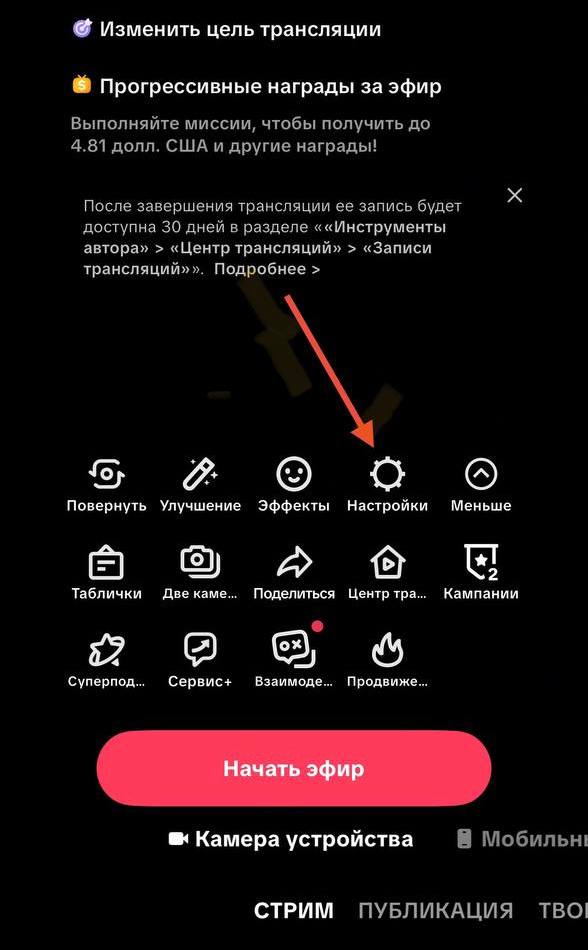
- On the LIVE start screen, tap Settings.
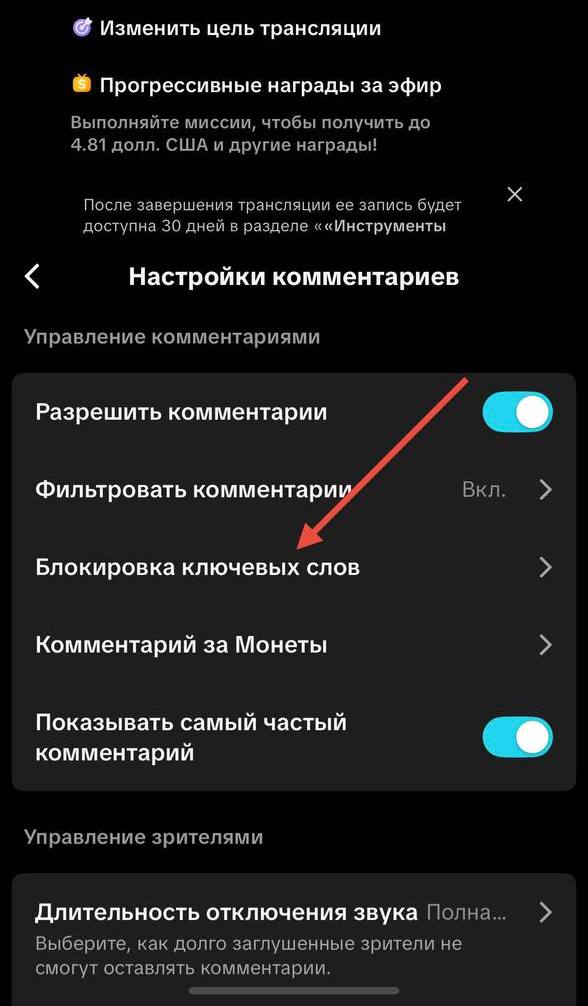
- Under Comment settings, choose Keyword filter.
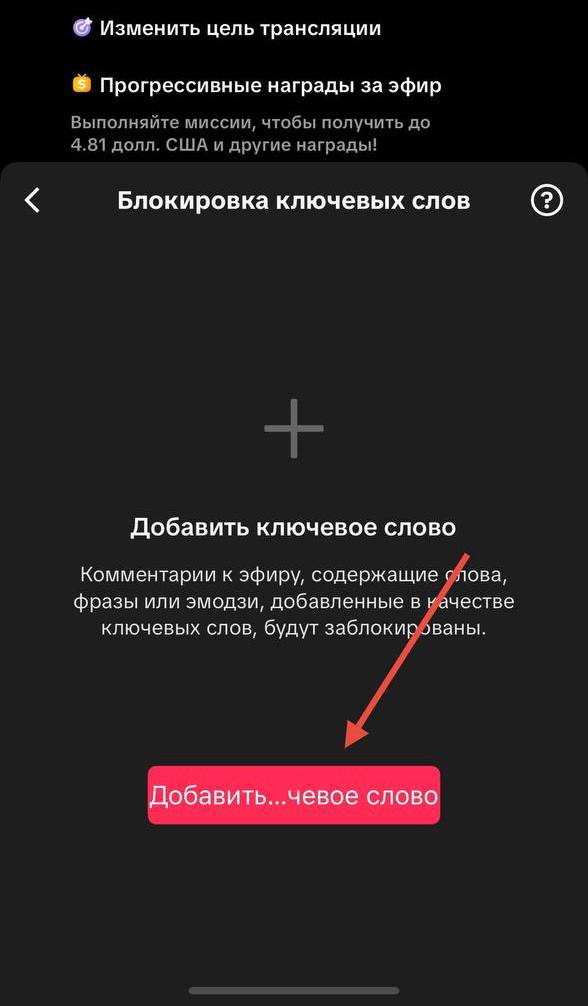
- Tap Add keywords and enter the words, phrases or emojis that shouldn't appear in chat.
Step 8. Check your account settings
- Personal account, not business. LIVE with gifts requires a personal creator account. Business accounts have monetization limits.
- Public profile. A private account doesn't appear in recommendations and isn't suited for streaming.
- Age 18+. You can only receive LIVE gifts from age 18, and your account details must be real.
- LIVE notifications. Remind viewers to follow and tap the bell so they hear about every stream.
Common profile mistakes
- An empty profile with no videos: viewers have nothing to hold on to.
- An avatar that doesn't match the person on stream: viewers aren't sure they're in the right place.
- No schedule: followers don't know when to come, and your viewer count stays random.
- Changing your username and look often: your audience loses you and can't find you in search.
- Other people's content and unlicensed music: this leads to removed videos and account restrictions.
Checklist: review your profile in 5 minutes
- A short, readable username, the same as on your other social networks.
- A profile name that includes your stream topic.
- An avatar with a close-up of your face and good lighting.
- A bio with your topic, stream schedule and a call to follow.
- Instagram or YouTube linked.
- 3 pinned videos: intro, best moment, announcement.
- Videos posted regularly, at least clips from your streams.
- "About me" filled in in the LIVE settings, quality set to maximum.
- Keyword filter set up for chat.
- Personal public account, age 18+.
FAQ
- How many followers do you need to stream on TikTok? Requirements depend on your country and change over time. Most often you need 1,000+ followers and to be 18+. You can check your access in the app: tap "+" and see if there's a LIVE tab. If you have fewer followers, you can get LIVE access through an agency: after you join, it sends you a link to a trial task.
- Can I change my username? Yes, in your profile settings, but how often you can change it is limited, and your old profile link will stop working. Pick a username for the long term.
- Does a streamer need to post videos? Yes. Videos bring new viewers from recommendations, and some of them come to your streams.
How StreamHub helps streamers
A well-built profile is only the first step. Next, it's important to go LIVE consistently, work with gifters and take part in battles. At StreamHub, a manager reviews a new creator's profile and streams and gives specific fixes. The StreamHub Club dashboard has diamond and LIVE hours stats, TikTok LIVE training modules and a daily "What to do today" plan.